App - run it as it is

Bird Box Live

Medium Verified

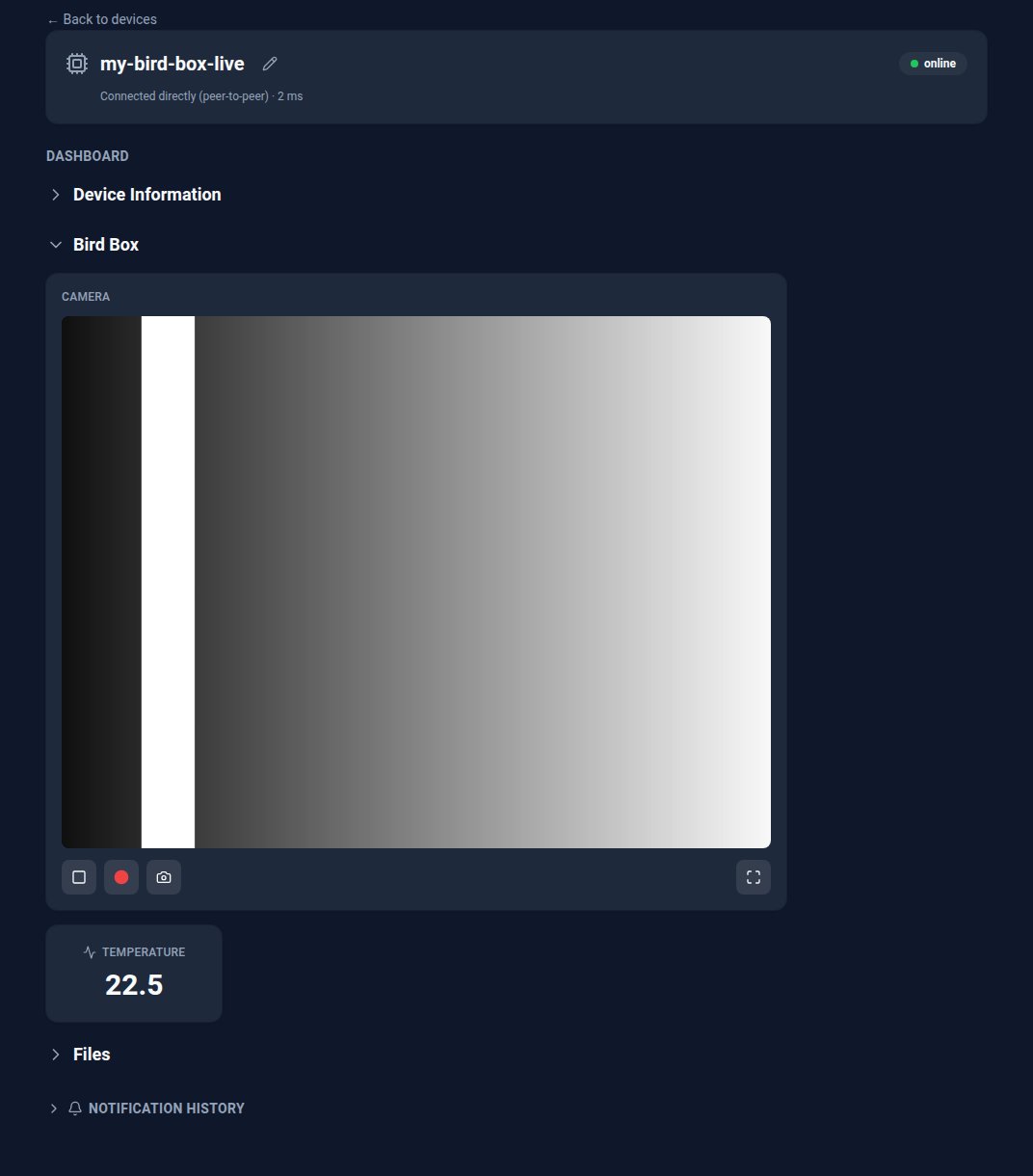
Its dashboard
Source:
apps/birdbox_live.py
Widgets:
Camera, Gauge, Files
You'll need:
A Pi, a camera (NoIR for night) and a bird box
What we've checked:
In use on a Pi Zero W and tested on a Pi 3A+. Firefox, Safari, a phone browser and mobile data have not been tried.

Put a Pi and a camera in a nest box, plug it in, and watch from anywhere. That was the first thing this project was built to do, and this app is that program, complete.

You'll need

  • A Raspberry Pi and a camera (a NoIR camera to see at night)
  • A bird box to put them in, and a way to power the Pi
  • To try it first: just a computer, with a test pattern in place of the camera

No Pi yet?

Once you have the code (see Build it), run python birdbox_live.py --test-pattern on your computer. A moving test pattern takes the camera's place, and it streams, records and takes snapshots just like one.

Build it

This project assumes you've registered the device (see Getting Started).

  1. Fit the camera to the Pi (with the Pi switched off), then put them in the box and plug in the power.
  2. Install the SDK, which includes the video pieces: pip install thepihub. (A Pi Zero needs an extra step: see the SDK's README.)
  3. Press View full code above and copy it into a file called birdbox_live.py, or press to copy a command that creates it.
  4. If you use a NoIR camera, run pihub camera setup once: otherwise its picture looks pink.

Running it

Run it:

python birdbox_live.py

Then open your dashboard and press the play button on the camera.

To keep it running, pihub install birdbox_live.py starts it at boot and restarts it if it stops.

Try changing this

  • Change the picture size, for example python birdbox_live.py --size 1280x720.
  • Take a snapshot each morning and see how the light changes.
  • Make it start by itself when the Pi switches on: pihub install birdbox_live.py.

The educational bit

  • What do you think the birds do at different times of day? What would you like to catch on camera?
  • A NoIR camera can see in the dark with an invisible infrared light. Why is that kinder to the birds than a bright lamp?

Safety notes

  • Check the rules before you open or fit anything in a nest box. In some places, disturbing nesting wild birds is against the law, so fit the camera outside the nesting season, or follow the advice of a bird charity.
  • The Pi's power adapter and cable must stay dry. Use one that is made for the place it lives.

What next

  • See at night: use a NoIR camera with an infrared light. The Motion Trap shows the wiring.
  • Record only when something moves: that is the Motion Trap.
  • Want the same camera in 20 lines to copy? See Live camera.

Under the hood

The rest of this page is for when you want to know how it works.

What you get

A Bird Box section on your dashboard with the live picture and a row of icon buttons: start or stop the stream, take a snapshot, record, go full screen. Nothing runs until you ask: the camera starts when you press Start camera and stops when you stop, close the page or walk away.

Video that does not go through us

The video travels directly from the Pi to your browser (WebRTC, peer to peer), encoded on the Pi. ThePiHub only helps the two find each other. If a direct connection cannot be made, the dashboard says Live video needs a direct connection rather than pretending.

Small enough for a Pi Zero

On a Pi 3A+ at 640x480, 15 frames a second, the Pi's hardware H.264 encoder costs about 5% of the board, against about 56% for encoding on the CPU. The original Pi Zero W has streamed with the same approach at 56% of its single core. That difference is why the app uses the hardware encoder whenever it finds one (--software-encoder is there for Pis without one).

Snapshot and Record, on the Pi

  • Snapshot saves a JPEG in ~/thepihub-snapshots, from the running stream if there is one.
  • Record writes video to ~/thepihub-recordings from the same encode as the stream, so recording while you watch costs almost nothing extra. Closing the page never stops a recording. If the power fails mid-recording you lose at most the last second.

The video size, frame rate, bitrate and Orientation (Normal, Rotate 180°, Mirror or Flip, for a camera fitted the wrong way up; a quarter turn is not possible) are settings on the dashboard under Device Information > Camera, and the storage limits and the longest recording are under Device Information > Video. They are remembered on the Pi. A command-line flag such as --size 1280x720 wins over the remembered value.

Getting the files off the Pi

A Files section on the dashboard lists the Photos and Videos folders. Download one at a time, or "Download Selected" (every file starts checked) straight to your own machine - peer to peer, the same as the live picture, so it needs a direct connection. A file is only deleted off the Pi once its full byte count has actually arrived, and that toggle defaults on (the usual reason to open this section is running out of space on the card).

A NoIR camera looks pink

A NoIR camera shows a pink picture until it is told what it is. Run pihub camera setup once and it is remembered. If you skip that, the first time the camera starts with a strongly pink picture the dashboard raises one warning that points at the Camera is NoIR toggle.
← Back to Projects

Bird Box Live

"""Bird Box, networked - the same Program/widget shape as
`examples/birdbox.py`, but against a real ThePiHub server instead of
`ConsoleTransport`. Kept out of `examples/` deliberately: that folder is
tested reference material (`tests/examples/test_birdbox.py`), not a
place for a real, personal device app.

Just run it:

    .venv/bin/python apps/birdbox_live.py

The first time, it prints a link and a short code: open the link while you are
logged in, approve it, and answer `y` when the terminal asks you to confirm the
account. That makes this Pi yours, and the platform gives it its id (saved to
~/.config/thepihub/config.json). Every run after that connects straight away.
(`pihub setup` does the same linking on its own, and `pihub install` links and
installs it as a service in one go.)

Point it at another server with --server if needed.
"""

from __future__ import annotations

import argparse
import signal
import time

from pihub import Device, Program
from pihub.video import (
    best_camera_source,
    CameraUnavailable,
    watch_camera_colour,
)


def parse_args() -> argparse.Namespace:
    parser = argparse.ArgumentParser(description=__doc__)
    parser.add_argument("--server", help="the platform to register with the first time (default: $PIHUB_SERVER, else https://thepihub.com); ignored once registered")
    parser.add_argument(
        "--snapshot-dir",
        default="~/thepihub-snapshots",
        help="where the Snapshot button saves pictures, on this device (default: ~/thepihub-snapshots)",
    )
    parser.add_argument(
        "--recordings-dir",
        default="~/thepihub-recordings",
        help="where the Record button saves video, on this device (default: ~/thepihub-recordings; a USB stick's mount point works)",
    )
    # Video size, frame rate and bitrate are settings on the dashboard (Device Information), remembered on the Pi. A value given here wins over the
    # remembered one, and stops that setting being saved: a change made on the dashboard then lasts only until this program restarts.
    parser.add_argument("--size", help="video size, WIDTHxHEIGHT (default: the dashboard setting, else 640x480)")
    parser.add_argument("--fps", type=int, help="video frames per second (default: the dashboard setting, else 15)")
    parser.add_argument(
        "--bitrate",
        type=int,
        help="target video bitrate in bits per second, for the hardware encoder (default: the dashboard setting, else 1000000)",
    )
    parser.add_argument(
        "--tuning",
        metavar="NAME",
        help="a libcamera tuning file for the camera, e.g. imx219_noir for a NoIR camera, whose picture is otherwise strongly pink "
        "(default: the one saved by `pihub camera setup`, else the camera's own)",
    )
    parser.add_argument(
        "--software-encoder",
        action="store_true",
        help="encode the video on the CPU instead of the Pi's hardware encoder (about 14x the CPU; a Pi 5 has no hardware encoder, and does this by itself)",
    )
    parser.add_argument(
        "--test-pattern",
        action="store_true",
        help="a moving test pattern instead of the Pi camera (for a machine with no camera; streams, records and snapshots like a camera)",
    )
    return parser.parse_args()


def main() -> None:
    args = parse_args()

    # No transport passed: device.start() below connects with the secret saved by an earlier registration. On the very first run there
    # is none, so, at a terminal, it links this machine by code (the platform assigns the id) and carries on.
    try:
        device = Device(server=args.server)
    except ValueError as error:
        raise SystemExit(f"error: {error}")

    birdbox = Program(id="birdbox", name="Bird Box")
    # The Camera component: the video with its own controls on the dashboard (stream, snapshot, record, full screen). The SDK answers them.
    camera = birdbox.output(id="camera", type="Camera")
    temperature = birdbox.output(id="temperature", type="Gauge")

    # Live video: the camera is NOT started here. It starts when someone presses "Start camera" on the
    # dashboard, and stops when they stop, close the page, or stop watching. 640x480 at 15 fps, H.264.
    size = None
    if args.size:
        try:
            size = tuple(int(part) for part in args.size.lower().split("x"))
            if len(size) != 2:
                raise ValueError
        except ValueError:
            raise SystemExit(f"error: --size must look like 640x480, not {args.size!r}")
    try:
        # The Pi's hardware encoder (about 5% of a Pi 3A+ at 640x480, against about 57% for the CPU); else the Pi camera encoded on the CPU (a Pi 5 has no hardware encoder,
        # or --software-encoder); with --test-pattern a moving pattern (encoded, as the hardware's is, so it can be recorded too).
        camera_source = best_camera_source(
            size=size, fps=args.fps, bitrate=args.bitrate, tuning=args.tuning, software_encoder=args.software_encoder, test_pattern=args.test_pattern
        )
    except CameraUnavailable as error:
        raise SystemExit(f"error: {error}")
    print(f"video: {camera_source.description}")
    camera.use(camera_source, snapshot_directory=args.snapshot_dir)  # Snapshot: a picture saved on this device, from the stream if it is running
    # Record: to this device's own storage, from the same encode as the stream (so an encoded source: the hardware encoder or libx264 on the CPU, not the raw-frame fallback). Its settings are under
    # Device Information > Video; stopping the stream or closing the page never stops a recording.
    recorder = camera.recorder_if_possible(directory=args.recordings_dir)
    # A NoIR camera is pink until it is told. If the picture is strongly pink and that was never done, say so ONCE as a warning from Device
    # Information (where the camera's settings, including "Camera is NoIR", are), which the dashboard shows there and asks the user to acknowledge
    # (a real camera only: a test pattern's colours mean nothing).
    watch_camera_colour(camera_source, device.information.warning)

    @birdbox.on_first_user_connected
    def viewer_arrived(payload: dict) -> None:
        print(">>> A viewer opened the dashboard")

    @birdbox.on_last_user_disconnected
    def viewers_left(payload: dict) -> None:
        print(">>> The last viewer left")

    # Files: the same folders the Camera itself writes to, so a recording or a snapshot can be pulled straight to
    # your own machine, peer to peer, without SSH or pulling the SD card.
    files_program = Program(id="files", name="Files")
    files = files_program.output(id="files", type="Files")
    files.add_folder("Photos", camera.snapshot_directory)
    if recorder is not None:
        files.add_folder("Videos", recorder.store.directory)
        recorder.on_saved(lambda _recording: files.publish())  # a finished recording shows up without a page reload

    device.add_program(birdbox)
    device.add_program(files_program)
    device.start()  # connects, sends registration, starts receiving - all automatic

    # (The SDK publishes the camera's streamId itself: nothing to set here.)
    temperature.set(22.5)

    print(f"{device.id} is online. Ctrl+C to stop.")
    # A service stop (systemd) sends SIGTERM, not Ctrl+C. Left alone, SIGTERM kills the program at once and the cleanup in `finally`
    # below never runs. Treating it as Ctrl+C makes both ways of stopping do the same cleanup:
    # a recording in progress is finished (not left half written) and the connection is closed.
    signal.signal(signal.SIGTERM, signal.default_int_handler)
    try:
        while True:
            time.sleep(1)
    except KeyboardInterrupt:
        pass
    finally:
        print("Stopping...")
        if recorder is not None:
            recorder.close()  # finishes a recording in progress
        device.stop()


if __name__ == "__main__":
    main()  # pragma: no cover

Create birdbox_live.py from a terminal

Paste this into a terminal on your Pi (over SSH is fine). It writes the whole program to birdbox_live.py in the folder you are in.

cat > birdbox_live.py << 'EOF'
"""Bird Box, networked - the same Program/widget shape as
`examples/birdbox.py`, but against a real ThePiHub server instead of
`ConsoleTransport`. Kept out of `examples/` deliberately: that folder is
tested reference material (`tests/examples/test_birdbox.py`), not a
place for a real, personal device app.

Just run it:

    .venv/bin/python apps/birdbox_live.py

The first time, it prints a link and a short code: open the link while you are
logged in, approve it, and answer `y` when the terminal asks you to confirm the
account. That makes this Pi yours, and the platform gives it its id (saved to
~/.config/thepihub/config.json). Every run after that connects straight away.
(`pihub setup` does the same linking on its own, and `pihub install` links and
installs it as a service in one go.)

Point it at another server with --server if needed.
"""

from __future__ import annotations

import argparse
import signal
import time

from pihub import Device, Program
from pihub.video import (
    best_camera_source,
    CameraUnavailable,
    watch_camera_colour,
)


def parse_args() -> argparse.Namespace:
    parser = argparse.ArgumentParser(description=__doc__)
    parser.add_argument("--server", help="the platform to register with the first time (default: $PIHUB_SERVER, else https://thepihub.com); ignored once registered")
    parser.add_argument(
        "--snapshot-dir",
        default="~/thepihub-snapshots",
        help="where the Snapshot button saves pictures, on this device (default: ~/thepihub-snapshots)",
    )
    parser.add_argument(
        "--recordings-dir",
        default="~/thepihub-recordings",
        help="where the Record button saves video, on this device (default: ~/thepihub-recordings; a USB stick's mount point works)",
    )
    # Video size, frame rate and bitrate are settings on the dashboard (Device Information), remembered on the Pi. A value given here wins over the
    # remembered one, and stops that setting being saved: a change made on the dashboard then lasts only until this program restarts.
    parser.add_argument("--size", help="video size, WIDTHxHEIGHT (default: the dashboard setting, else 640x480)")
    parser.add_argument("--fps", type=int, help="video frames per second (default: the dashboard setting, else 15)")
    parser.add_argument(
        "--bitrate",
        type=int,
        help="target video bitrate in bits per second, for the hardware encoder (default: the dashboard setting, else 1000000)",
    )
    parser.add_argument(
        "--tuning",
        metavar="NAME",
        help="a libcamera tuning file for the camera, e.g. imx219_noir for a NoIR camera, whose picture is otherwise strongly pink "
        "(default: the one saved by `pihub camera setup`, else the camera's own)",
    )
    parser.add_argument(
        "--software-encoder",
        action="store_true",
        help="encode the video on the CPU instead of the Pi's hardware encoder (about 14x the CPU; a Pi 5 has no hardware encoder, and does this by itself)",
    )
    parser.add_argument(
        "--test-pattern",
        action="store_true",
        help="a moving test pattern instead of the Pi camera (for a machine with no camera; streams, records and snapshots like a camera)",
    )
    return parser.parse_args()


def main() -> None:
    args = parse_args()

    # No transport passed: device.start() below connects with the secret saved by an earlier registration. On the very first run there
    # is none, so, at a terminal, it links this machine by code (the platform assigns the id) and carries on.
    try:
        device = Device(server=args.server)
    except ValueError as error:
        raise SystemExit(f"error: {error}")

    birdbox = Program(id="birdbox", name="Bird Box")
    # The Camera component: the video with its own controls on the dashboard (stream, snapshot, record, full screen). The SDK answers them.
    camera = birdbox.output(id="camera", type="Camera")
    temperature = birdbox.output(id="temperature", type="Gauge")

    # Live video: the camera is NOT started here. It starts when someone presses "Start camera" on the
    # dashboard, and stops when they stop, close the page, or stop watching. 640x480 at 15 fps, H.264.
    size = None
    if args.size:
        try:
            size = tuple(int(part) for part in args.size.lower().split("x"))
            if len(size) != 2:
                raise ValueError
        except ValueError:
            raise SystemExit(f"error: --size must look like 640x480, not {args.size!r}")
    try:
        # The Pi's hardware encoder (about 5% of a Pi 3A+ at 640x480, against about 57% for the CPU); else the Pi camera encoded on the CPU (a Pi 5 has no hardware encoder,
        # or --software-encoder); with --test-pattern a moving pattern (encoded, as the hardware's is, so it can be recorded too).
        camera_source = best_camera_source(
            size=size, fps=args.fps, bitrate=args.bitrate, tuning=args.tuning, software_encoder=args.software_encoder, test_pattern=args.test_pattern
        )
    except CameraUnavailable as error:
        raise SystemExit(f"error: {error}")
    print(f"video: {camera_source.description}")
    camera.use(camera_source, snapshot_directory=args.snapshot_dir)  # Snapshot: a picture saved on this device, from the stream if it is running
    # Record: to this device's own storage, from the same encode as the stream (so an encoded source: the hardware encoder or libx264 on the CPU, not the raw-frame fallback). Its settings are under
    # Device Information > Video; stopping the stream or closing the page never stops a recording.
    recorder = camera.recorder_if_possible(directory=args.recordings_dir)
    # A NoIR camera is pink until it is told. If the picture is strongly pink and that was never done, say so ONCE as a warning from Device
    # Information (where the camera's settings, including "Camera is NoIR", are), which the dashboard shows there and asks the user to acknowledge
    # (a real camera only: a test pattern's colours mean nothing).
    watch_camera_colour(camera_source, device.information.warning)

    @birdbox.on_first_user_connected
    def viewer_arrived(payload: dict) -> None:
        print(">>> A viewer opened the dashboard")

    @birdbox.on_last_user_disconnected
    def viewers_left(payload: dict) -> None:
        print(">>> The last viewer left")

    # Files: the same folders the Camera itself writes to, so a recording or a snapshot can be pulled straight to
    # your own machine, peer to peer, without SSH or pulling the SD card.
    files_program = Program(id="files", name="Files")
    files = files_program.output(id="files", type="Files")
    files.add_folder("Photos", camera.snapshot_directory)
    if recorder is not None:
        files.add_folder("Videos", recorder.store.directory)
        recorder.on_saved(lambda _recording: files.publish())  # a finished recording shows up without a page reload

    device.add_program(birdbox)
    device.add_program(files_program)
    device.start()  # connects, sends registration, starts receiving - all automatic

    # (The SDK publishes the camera's streamId itself: nothing to set here.)
    temperature.set(22.5)

    print(f"{device.id} is online. Ctrl+C to stop.")
    # A service stop (systemd) sends SIGTERM, not Ctrl+C. Left alone, SIGTERM kills the program at once and the cleanup in `finally`
    # below never runs. Treating it as Ctrl+C makes both ways of stopping do the same cleanup:
    # a recording in progress is finished (not left half written) and the connection is closed.
    signal.signal(signal.SIGTERM, signal.default_int_handler)
    try:
        while True:
            time.sleep(1)
    except KeyboardInterrupt:
        pass
    finally:
        print("Stopping...")
        if recorder is not None:
            recorder.close()  # finishes a recording in progress
        device.stop()


if __name__ == "__main__":
    main()  # pragma: no cover
EOF