Example - copy and change it

Live camera

Medium Unverified

Its dashboard
Source:
examples/birdbox.py
Widgets:
Camera, Gauge
You'll need:
A computer, or a Pi with a camera
What we've checked:
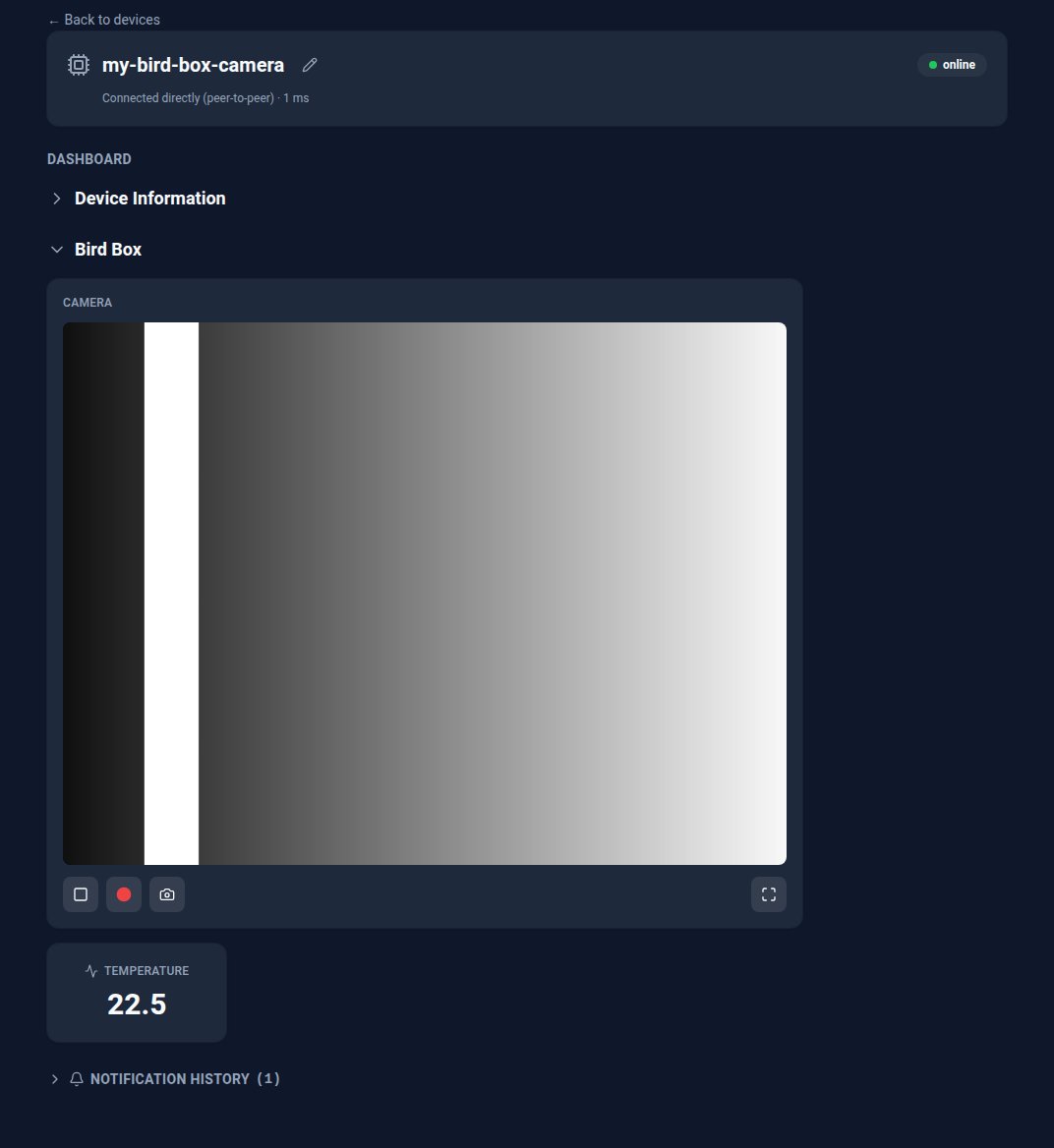
Tested with a fake connection and the test pattern, and seen on a real dashboard in real Chrome, registered against a real server, streaming the test pattern live. The Camera component itself has run on real Pi cameras (see Bird Box Live), including CPU encoding on a Pi 3A+: live in real Chrome and a recording made from the dashboard, played back. CPU encoding has not yet been tried on a Pi 5, which has no hardware encoder.

A camera is the most satisfying thing you can add to a Pi project and, usually, the hardest. ThePiHub's Camera component keeps it to a few lines: one widget that shows live video and carries its own buttons to stream, take a snapshot, record and go full screen.

You'll need

  • A computer, to start with: without a camera it shows a moving test pattern
  • For the real picture: a Raspberry Pi with a camera

No Pi yet?

Follow the steps below on your computer. The moving bar is a test pattern standing in for a camera, and it streams, records and takes snapshots just like one.

Build it

This project assumes you've registered the device (see Getting Started).

  1. On your Pi, or on your computer, install the SDK: pip install thepihub.
  2. Press View full code above and copy it into a file called birdbox.py, or press to copy a command that creates it.

The install includes the video pieces. On a 32-bit Pi such as the original Zero W, see the deployment notes in the SDK's README.

Running it

Run it:

python birdbox.py

Then open your dashboard and press the play button on the camera: live video appears, with buttons to take a snapshot, record and go full screen. Pictures are saved to ~/thepihub-snapshots and recordings to ~/thepihub-recordings, on the device. Video goes straight from the Pi to your browser and never through ThePiHub's servers.

Try changing this

  • Take a snapshot, then record a clip. Find them on the device, in ~/thepihub-snapshots and ~/thepihub-recordings.
  • Change the message the dashboard shows when a viewer arrives ("Viewer connected").
  • Connect a real Pi camera and run the same file on the Pi.

The educational bit

  • The video goes straight from the Pi to your browser. Why might that matter for a camera in your home or garden?
  • The camera only starts when someone presses play. Why not leave it running all the time?

Safety notes

A camera sees whatever it is pointed at. Point it only at your own space, and think about who might be in the picture, neighbours and their children included. Switch the Pi off before you fit the camera's ribbon cable.

What next

  • Put it in a bird box: Bird Box Live is the complete program, with settings and recording.
  • Try a NoIR camera to see in the dark.
  • Record only when something moves with the Motion Trap.

Under the hood

The rest of this page is for when you want to know how it works.

The whole idea

camera = birdbox.output(id="camera", type="Camera")
camera.use(best_camera_source())  # the Pi's camera (hardware or software encoding); anywhere else, a moving test pattern
camera.recorder_if_possible()  # adds the Record button when the camera can be recorded

use() says where the pictures come from, and best_camera_source() picks the best the machine has. recorder_if_possible() adds recording when the camera can be recorded. That is all: the buttons on the dashboard are answered by the SDK, so there is no handler to write.

Why it is cheap to run

On a Pi with a camera and a hardware H.264 encoder (the Pi Zero to the Pi 4) the example uses it, so the picture is compressed by the GPU rather than the CPU. Recording and streaming share that single encode. A Pi with no hardware encoder (a Pi 5) encodes on its CPU instead, at about 40% of one core of a Pi 3A+ at 640x480; the picture still streams, and you can still record and take snapshots. And the camera does not run all the time: it starts when somebody presses the button (or a recording starts) and stops again when they stop watching or close the page.

No Pi? No problem

On a computer with no camera the example uses a moving test pattern that behaves like a camera: it streams, records and takes snapshots. You can try the whole thing on a laptop. (A Raspberry Pi that cannot use its camera stops with a message saying what to check, rather than showing the test pattern as if it were the camera.)

Know when someone is watching

@birdbox.on_first_user_connected
def viewer_arrived(payload):
    birdbox.info("Viewer connected")

Your program is told when the first viewer arrives and when the last one leaves, which is the moment to start or stop anything that only matters while somebody is looking.

← Back to Projects

Live camera

"""Bird Box - the Camera component: live video with buttons to record and take a snapshot.

Copy this file anywhere and run it:

    python birdbox.py

If this is the first time you have connected from this device, it prints a link and a code: open the link
while logged in to ThePiHub and approve it, then answer y when the terminal asks you to confirm the account.
The device is yours and gets its id. Every run after that connects straight away. Ctrl+C stops it.

On a Raspberry Pi with a camera this shows the Pi's camera; anywhere else, a moving test pattern. Where the Pi has a hardware video encoder it does the encoding; where it has none (a Pi 5), the CPU does, at the CPU's cost. Either way the picture streams, you can take snapshots and
you can record.
It needs the video pieces (the plain `pip install thepihub` brings PyAV; on a 32-bit Pi there is no pip build of PyAV, so install it with apt (`sudo apt install python3-picamera2 python3-av python3-aiortc`) and create the virtualenv with `--system-site-packages`).
The camera only runs while someone is watching or recording. Pictures go to ~/thepihub-snapshots
and recordings to ~/thepihub-recordings, on this device.
"""

from __future__ import annotations

import time
from typing import Optional

from pihub import Device, Program
from pihub.device import Transport
from pihub.video import best_camera_source


def main(transport: Optional[Transport] = None) -> Device:
    # `transport` is for the tests. Left out, the device connects to the real server.
    device = Device(transport=transport)

    birdbox = Program(id="birdbox", name="Bird Box")

    # The Camera component draws the video with its own buttons: stream, snapshot, record, full screen.
    camera = birdbox.output(id="camera", type="Camera")
    camera.use(best_camera_source())  # the Pi's camera (hardware or software encoding); anywhere else, a moving test pattern
    camera.recorder_if_possible()  # adds the Record button when the camera can be recorded

    temperature = birdbox.output(id="temperature", type="Gauge")

    # The camera has nothing to do while nobody is watching: these say when someone starts or stops.
    @birdbox.on_first_user_connected
    def viewer_arrived(payload: dict) -> None:
        birdbox.info("Viewer connected")

    @birdbox.on_last_user_disconnected
    def viewers_left(payload: dict) -> None:
        birdbox.info("Last viewer disconnected")

    device.add_program(birdbox)
    device.start()

    temperature.set(22.5)  # replace with a real sensor reading

    return device


if __name__ == "__main__":
    device = main()  # pragma: no cover
    print(f"{device.id} is online. Ctrl+C to stop.")  # pragma: no cover
    try:  # pragma: no cover
        while True:
            time.sleep(1)
    except KeyboardInterrupt:  # pragma: no cover
        pass
    finally:  # pragma: no cover
        device.stop()

Create birdbox.py from a terminal

Paste this into a terminal on your Pi (over SSH is fine). It writes the whole program to birdbox.py in the folder you are in.

cat > birdbox.py << 'EOF'
"""Bird Box - the Camera component: live video with buttons to record and take a snapshot.

Copy this file anywhere and run it:

    python birdbox.py

If this is the first time you have connected from this device, it prints a link and a code: open the link
while logged in to ThePiHub and approve it, then answer y when the terminal asks you to confirm the account.
The device is yours and gets its id. Every run after that connects straight away. Ctrl+C stops it.

On a Raspberry Pi with a camera this shows the Pi's camera; anywhere else, a moving test pattern. Where the Pi has a hardware video encoder it does the encoding; where it has none (a Pi 5), the CPU does, at the CPU's cost. Either way the picture streams, you can take snapshots and
you can record.
It needs the video pieces (the plain `pip install thepihub` brings PyAV; on a 32-bit Pi there is no pip build of PyAV, so install it with apt (`sudo apt install python3-picamera2 python3-av python3-aiortc`) and create the virtualenv with `--system-site-packages`).
The camera only runs while someone is watching or recording. Pictures go to ~/thepihub-snapshots
and recordings to ~/thepihub-recordings, on this device.
"""

from __future__ import annotations

import time
from typing import Optional

from pihub import Device, Program
from pihub.device import Transport
from pihub.video import best_camera_source


def main(transport: Optional[Transport] = None) -> Device:
    # `transport` is for the tests. Left out, the device connects to the real server.
    device = Device(transport=transport)

    birdbox = Program(id="birdbox", name="Bird Box")

    # The Camera component draws the video with its own buttons: stream, snapshot, record, full screen.
    camera = birdbox.output(id="camera", type="Camera")
    camera.use(best_camera_source())  # the Pi's camera (hardware or software encoding); anywhere else, a moving test pattern
    camera.recorder_if_possible()  # adds the Record button when the camera can be recorded

    temperature = birdbox.output(id="temperature", type="Gauge")

    # The camera has nothing to do while nobody is watching: these say when someone starts or stops.
    @birdbox.on_first_user_connected
    def viewer_arrived(payload: dict) -> None:
        birdbox.info("Viewer connected")

    @birdbox.on_last_user_disconnected
    def viewers_left(payload: dict) -> None:
        birdbox.info("Last viewer disconnected")

    device.add_program(birdbox)
    device.start()

    temperature.set(22.5)  # replace with a real sensor reading

    return device


if __name__ == "__main__":
    device = main()  # pragma: no cover
    print(f"{device.id} is online. Ctrl+C to stop.")  # pragma: no cover
    try:  # pragma: no cover
        while True:
            time.sleep(1)
    except KeyboardInterrupt:  # pragma: no cover
        pass
    finally:  # pragma: no cover
        device.stop()
EOF