Example - copy and change it

Greenhouse

Easy Verified

Its dashboard
Source:
examples/greenhouse.py
Widgets:
Gauge, Button
You'll need:
Just a computer to start; a sensor to make it real
What we've checked:
Tested with a fake connection, and seen on a real dashboard in real Chrome, registered against a real server.

Most Raspberry Pi projects start the same way: a sensor, a number, and the wish to see that number from somewhere else. This example is the shortest complete version of that wish, and it shows the three things you will use in almost every program you write.

You'll need

  • A Raspberry Pi or any computer with Python 3.10 or newer
  • No sensor to start: the numbers are made up until you swap in a real one

No Pi yet?

Nothing here needs a Pi: follow the steps below on your computer. Add a real sensor whenever you like.

Build it

This project assumes you've registered the device (see Getting Started).

  1. On your Pi, or on your computer, install the SDK: pip install thepihub.
  2. Press View full code above and copy it into a file called greenhouse.py, or press to copy a command that creates it.

Running it

Run it:

python greenhouse.py

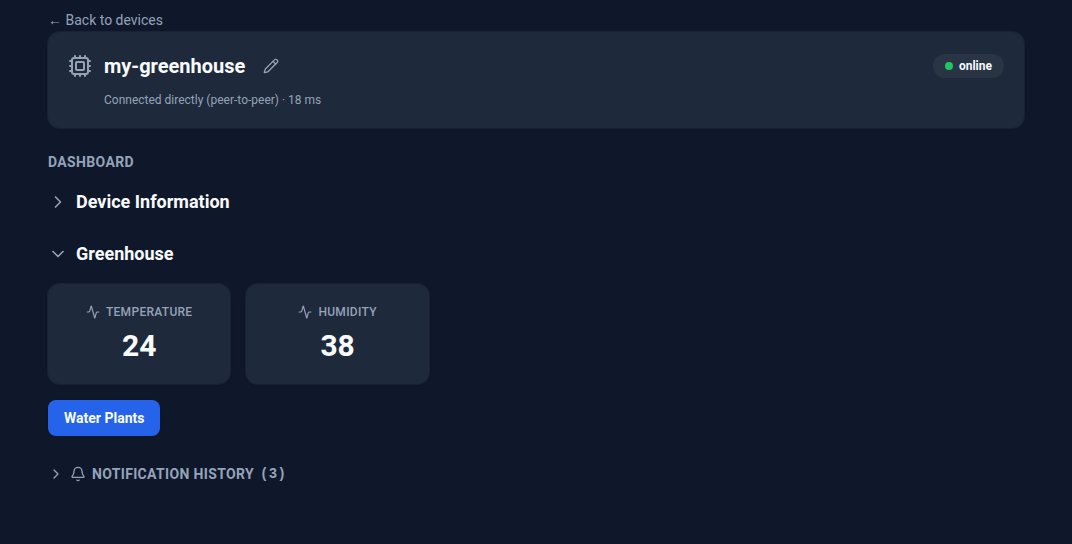
Then open your dashboard. Your greenhouse is there, with its two gauges, a Water Plants button and a warning. Press Ctrl+C to stop it.

Try changing this

  • Change the two numbers (24.0 and 38.0), run it again and watch the gauges.
  • Write your own warning, such as "The tomatoes are thirsty!", and see where it appears.
  • Change what the button says when you press it: edit the message in water.
  • Add a real sensor when you are ready: replace the two fixed numbers with its readings.

The educational bit

  • The gauge says 24. Who decided it should say 24? What would have to change for it to be a real reading?
  • A warning stays on the screen until someone presses Acknowledge. What could go wrong if it disappeared by itself?

Safety notes

Nothing to wire, so nothing to break. If you add a real sensor later, switch the Pi off while you connect it and check the sensor's instructions first: the Pi's pins take 3.3 V. If the button ever switches a real pump or valve, use a relay board made for 3.3 V logic, and keep water well away from the Pi and its power supply.

What next

  • Add a real temperature and humidity sensor, and swap the two fixed numbers for its readings.
  • Decide what Water plants should really do, and what deserves a warning. That is the whole shape of a device program.
  • Draw a chart with the Weather station, or wire real parts with Button and LED.

Under the hood

The rest of this page is for when you want to know how it works.

The gauges

temperature = greenhouse.output(id="temperature", type="Gauge")
humidity = greenhouse.output(id="humidity", type="Gauge")
...
temperature.set(24.0)
humidity.set(38.0)

An output is something your program shows. You declare it once, give it a type, and then call .set() whenever you have a new reading. The dashboard draws the gauge and keeps it up to date. The numbers here are fixed; swap them for a real sensor reading and you have a working greenhouse monitor.

The button

water_plants = greenhouse.command(id="waterPlants", type="Button")

@water_plants.handler
def water(command):
    print("Water plants pressed")  # shows in the terminal
    greenhouse.info("Plants watered")  # and in the dashboard's Notification history

A command goes the other way: something a person does on the dashboard that your program answers. Press the button in the browser and your function runs on the Pi. Open a valve, switch a pump, whatever you need, then tell the dashboard what happened.

The warning

greenhouse.warning("Soil moisture low")

info() and warning() send a notification. A warning appears as a toast on the dashboard and stays there until someone acknowledges it, so an alert cannot be missed just because nobody was looking at the moment it fired.

← Back to Projects

Greenhouse

"""Greenhouse - two Gauges, a Button that runs your code, and notifications.

Copy this file anywhere and run it:

    python greenhouse.py

If this is the first time you have connected from this device, it prints a link and a code: open the link
while logged in to ThePiHub and approve it, then answer y when the terminal asks you to confirm the account.
The device is yours and gets its id. Every run after that connects straight away. Ctrl+C stops it.
"""

from __future__ import annotations

import time
from typing import Optional

from pihub import Device, Program
from pihub.device import Transport
from pihub.protocol.messages import CommandMessage


def main(transport: Optional[Transport] = None) -> Device:
    # `transport` is for the tests. Left out, the device connects to the real server.
    device = Device(transport=transport)

    greenhouse = Program(id="greenhouse", name="Greenhouse")

    temperature = greenhouse.output(id="temperature", type="Gauge")
    humidity = greenhouse.output(id="humidity", type="Gauge")
    water_plants = greenhouse.command(id="waterPlants", type="Button")

    @water_plants.handler
    def water(command: CommandMessage) -> None:
        # Your code goes here (open a valve, switch a pump). Then tell the dashboard.
        print("Water plants pressed")  # shows here, in the terminal
        greenhouse.info("Plants watered")  # and in the dashboard's Notification history

    device.add_program(greenhouse)
    device.start()

    # Replace these with real sensor readings.
    temperature.set(24.0)
    humidity.set(38.0)

    # A warning shows on the dashboard until someone acknowledges it.
    greenhouse.warning("Soil moisture low")

    return device


if __name__ == "__main__":
    device = main()  # pragma: no cover
    print(f"{device.id} is online. Ctrl+C to stop.")  # pragma: no cover
    try:  # pragma: no cover
        while True:
            time.sleep(1)
    except KeyboardInterrupt:  # pragma: no cover
        pass
    finally:  # pragma: no cover
        device.stop()

Create greenhouse.py from a terminal

Paste this into a terminal on your Pi (over SSH is fine). It writes the whole program to greenhouse.py in the folder you are in.

cat > greenhouse.py << 'EOF'
"""Greenhouse - two Gauges, a Button that runs your code, and notifications.

Copy this file anywhere and run it:

    python greenhouse.py

If this is the first time you have connected from this device, it prints a link and a code: open the link
while logged in to ThePiHub and approve it, then answer y when the terminal asks you to confirm the account.
The device is yours and gets its id. Every run after that connects straight away. Ctrl+C stops it.
"""

from __future__ import annotations

import time
from typing import Optional

from pihub import Device, Program
from pihub.device import Transport
from pihub.protocol.messages import CommandMessage


def main(transport: Optional[Transport] = None) -> Device:
    # `transport` is for the tests. Left out, the device connects to the real server.
    device = Device(transport=transport)

    greenhouse = Program(id="greenhouse", name="Greenhouse")

    temperature = greenhouse.output(id="temperature", type="Gauge")
    humidity = greenhouse.output(id="humidity", type="Gauge")
    water_plants = greenhouse.command(id="waterPlants", type="Button")

    @water_plants.handler
    def water(command: CommandMessage) -> None:
        # Your code goes here (open a valve, switch a pump). Then tell the dashboard.
        print("Water plants pressed")  # shows here, in the terminal
        greenhouse.info("Plants watered")  # and in the dashboard's Notification history

    device.add_program(greenhouse)
    device.start()

    # Replace these with real sensor readings.
    temperature.set(24.0)
    humidity.set(38.0)

    # A warning shows on the dashboard until someone acknowledges it.
    greenhouse.warning("Soil moisture low")

    return device


if __name__ == "__main__":
    device = main()  # pragma: no cover
    print(f"{device.id} is online. Ctrl+C to stop.")  # pragma: no cover
    try:  # pragma: no cover
        while True:
            time.sleep(1)
    except KeyboardInterrupt:  # pragma: no cover
        pass
    finally:  # pragma: no cover
        device.stop()
EOF